Temporary RDM Guidelines (transition period)
Work in progress
These guidelines reflect the currently recommended practices while we are setting up the full Research Data Management workflows (ManGO, RDR, FriGO, SOPs). They may evolve over time. When in doubt, ask.
The big picture
The decision tree below shows the intended direction of storage across the research lifecycle depending on researcher stage:
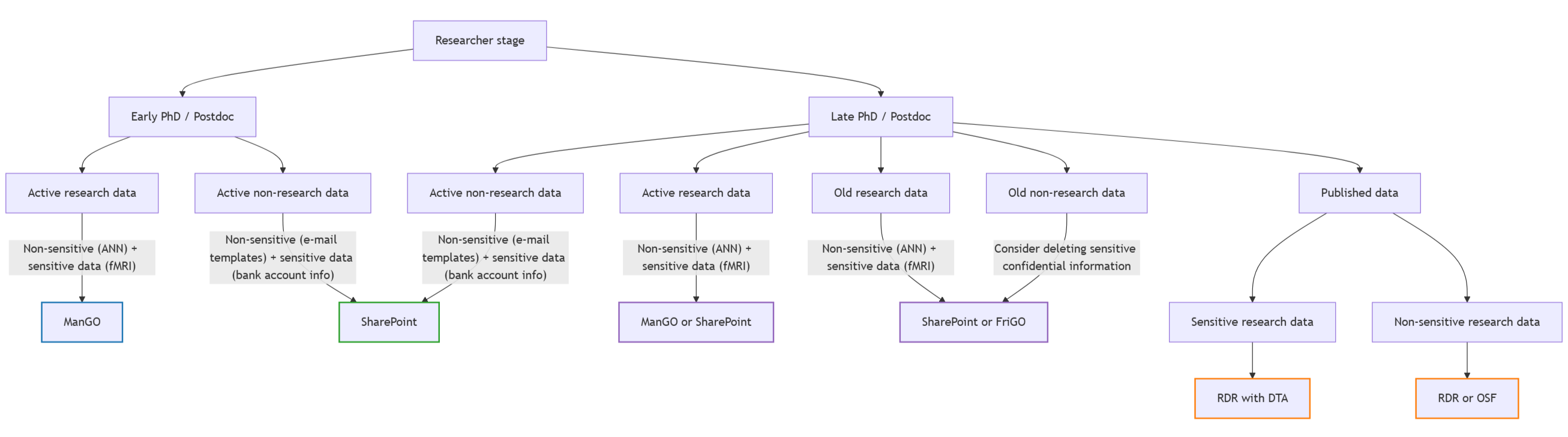
If you are an early-stage researcher and/or start a new project:
- Start with SharePoint for organisation and daily files
- Move structured study datasets to ManGO once the project is properly set up (primary location)
If you are a late-stage researcher or dealing with ongoing research:
- Ensure everything (active and old research data) is (at least) safely stored on SharePoint
- If you want, you can move your active research datasets to ManGO
We are currently rolling this out gradually, starting with pilot users who are
- testing ManGO ingestion workflows
- testing RDR for upcoming publications
- collecting feedback for the BADM team
- refining official workflows per research modality
If you want to help test these systems, feel free to volunteer. 🙂
Global rules
Data protection and GDPR compliance
As we are all collecting and processing personal data that is either confidential or strictly confidential according to the KU Leuven data classification chart, this requires specific care and precautions in accordance with the GDPR:
- All research data should be pseudonymized ASAP and the key stored separately from the research dataset. Note that in our (neuroimaging) studies, full anonymization is almost impossible since reidentification cannot be fully eliminated (see this page if you are unsure what the difference is).
- Delete sensitive data from unencrypted devices immediately (e.g., after transfer from the acquisition PC).
- Files containing confidential information should always be encrypted and restricted to authorised project members only.
Storage and backups
- Always keep an independent local copy of raw (pseudonymized) data on a BitLocker-encrypted drive (no auto-sync).
- OneDrive is only for documents that are personal to you and do not need to survive the end of your contract.
- SharePoint is the default for day-to-day work and serves as a time-capsule for people leaving the lab.
Dataset organisation and reproducibility
- All data should be organised following the BIDS structure, independent of its modality.
- Upload scripts and analysis code to GitHub throughout the project lifecycle.
- Clearly document your study and dataset contents, preprocessing and analysis steps, code, etc. (see this page)
SharePoint setup (current default for daily work)
As a first rollout step, each lab member received a personal KU Leuven SharePoint space (1 TB). The email with your personal SharePoint site was sent out on 17/12/2025 with subject "KULeuven Teams Creation Info".
For now:
✅ Use SharePoint for: project files, working documents, lab-related material, confidential data that must remain in the lab long-term.
❌ Do NOT rely on OneDrive for this anymore. If you still do, move files gradually whenever you start something new or touch old files.
If you haven't yet, these are the steps to sync SharePoint to your computer (one-time setup).
- Open the email “KULeuven Teams Creation Info”
- Click the SharePoint site link
- Click
Documents - Click Sync
- Allow Microsoft OneDrive if prompted
- Close the pop-up
Your SharePoint will now appear in File Explorer under KU Leuven → GHUM PPW → your-name and it will sync automatically like OneDrive.
In the Documents folder on SharePoint online, there is also a button to add a shortcut to your OneDrive. In that way, you can easily access your SharePoint folder via your OneDrive without it taking up extra space in your OneDrive.
This page will change
These guidelines reflect the current working procedures and may be updated as workflows are tested and improved.
Please check this page regularly if you are starting a new project.
Questions welcome
We know this transition phase can feel unclear. If something is confusing, send concrete questions, report unclear cases, or suggest examples we should document. This helps us build better permanent guidelines.